Using the Executive Prompt Tool
Graphic Designer Role
You are starting a new business or a new division for your company, and you have a specific vision for its identity. Graphic design is at the heart of your brand, and getting it right is critical.
That is why we created the Graphic Designer role in our tool. It provides a simple, quick way to iterate on ideas for logos, presentation decks, social media graphics, brochures, and more. For example, you can create a logo in seconds by specifying your company’s context, your preferred visual or typographic style, and your chosen color palette.
Instead of guessing what to include in a prompt, we have laid everything out for you. All you need to do is complete the relevant fields and select your desired options.
Let’s explore this role in the Executive Prompt Tool. When using the tool, select the Graphic Designer role and populate the following fields:
Creative Project
- Design Objective: Here, you can indicate the objective of your prompt and what you aim to create. You can choose from Brand Identity (Logo), Social Media Visual Assets, Presentation/Pitch Deck Design, Infographics, Brochures, Print & Packaging, or Web Components. Alternatively, you can enter a specific objective tailored to your needs.
- Context / Project Goal: Here, you provide the AI with more context about your project, including the type of company you are, the industry in which you operate, your company name, and your target audience. You can also include any other relevant information that will help the AI focus the design it is generating.
Aesthetic & Visuals
- Primary Visual Style: Here, you can select one of our predefined visual styles or specify exactly what you need. For example, choose whether you are looking for Minimalist & Sophisticated, Clean & Corporate, Luxury & Elegant (High-end), or Futuristic & High-Tech. Be sure to select the style that best represents your brand identity.
- Typography Direction: You can also specify the typography you want for your graphic design. Such as Serif for something Classic, traditional, or authoritative; or Sans-Serif for something more Modern, clean, and tech-forward.
Strategic Add-ons
- Color Palette: Select this to specify the color palette for your company.
- Imagery/Icons: Select this option if you want to indicate anything with regard to imagery or icons to be included in your graphic design, such as abstract designs, line-art, or an icon of something specific.
- Dimensions: Selecting this allows you to force a specific dimension to your design, such as paper size or pixel dimensions
- Attached Logo: Clicking on this indicates to the AI that you will be attaching a logo that you want used in the design.
Case Study: Lumina Futura Lamps Logo
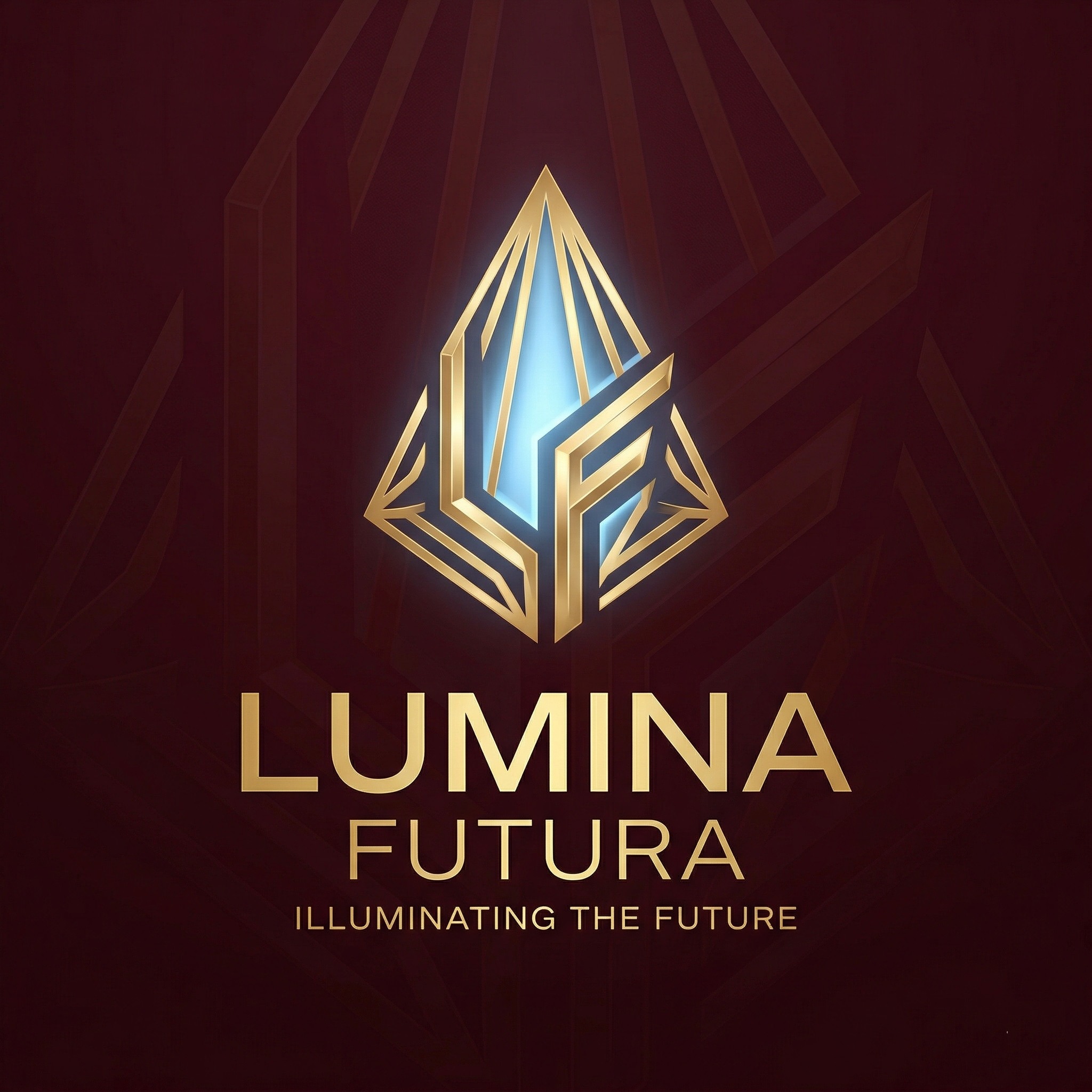
In this example, we will generate a modern logo for a company that makes futuristic house lamps. We have populated the fields as follows:
- Design Objective: Brand Identity (Logo)
- Context / Project Goal: A unique and stylish logo for a North American company that manufactures futuristic house lamps. The brand targets a demographic of affluent professionals between the ages of 30 and 50. The company name is “Lumina Futura”.
- Primary Visual Style: Futuristic & High-Tech
- Typography Direction: Sans-Serif (Modern)
- Color Palette: Baby blue, Burgundy, Gold
- Imagery/Icons: None
- Dimensions: 3840x3840
- Attached Logo: None
Watch: The Graphic Designer in Action
The video below demonstrates how to use the Executive Prompt Tool to generate a logo for a modern house lamp company.
We encourage you to explore the various roles—from Management Consultant to Marketing Specialist—to see how this tool acts as a force multiplier for your daily productivity.